
Reservation Module
The reservation module is the most important part of any touristic software. By the years we developed and changed these modules and how they are function a lot of times to fulfill clients’ expectations.
Hotel rooming forecast
Forecast gives you the possibility to calculate or predict how many rooms have been sold in a certain hotel. If a certain number of rooms are booked in a hotel you prefer, Forecast gives you the opportunity to see how many more rooms are available for that period.
- Open the OneSystem window on your browser,
- Select RESERVATION from the main menu tab,
- Select FORECAST tab from the sub-menu,
- Select the DATES for which you want to see availability,
- Insert the name of the hotel and click on QUERY.

Reservation payments / refunds
Payments and their control are the basis for the functioning of any business. One system provides a clear insight into all ongoing payments and payments in the previous period.
- Open the OneSystem window on your browser.
- Select RESERVATION from the main menu tab.
- Select RESERVATION PAYMENTS from the operation submenu.
Payment entry
All payments within the reservation you can enter in the following way:
Within the reservation, below the arrangement information, there is the PAYMENTS menu, to add a payment follow the next steps:
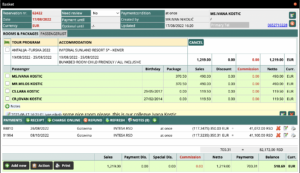
- Click on Receipt button,
- Select from the Personality drop-down menu method of payment (Credit card, Cash, Cheques…),
- Enter the Amount and save.
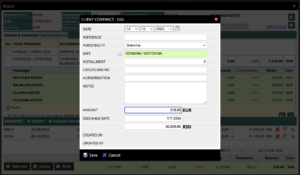
| DATE | Enter the payment date. |
| REFERENCE | |
| PERSONALITY | Payment method cash, card, check etc. |
| SAFE | The option of choosing a place of payment. |
| INSTALMENT | Number of instalments allowed. |
| CREDITCARD NO | |
| AUTHORISATION | Slip authorization number. |
| NOTES | |
| AMOUNT | Amount in selected currency. |
| EXCHANGE RATE | Currency exchange rate. |
The payment you have saved will be seen immediately under the PAYMENTS menu, within which you have options and 3 icons: Delete, Edit and Print.
Payment reports and tracking
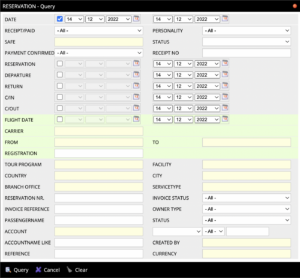
Select RESERVATION PAYMANTS from the operation submenu and click on Query.
A search window opens and you can take informations for all payments made during the day and in the previous period. You can select only cash payments or only card payments, list who made the payment and when, then payments for specific departures, etc. The system provides all control and monitoring options, as shown in the window below:
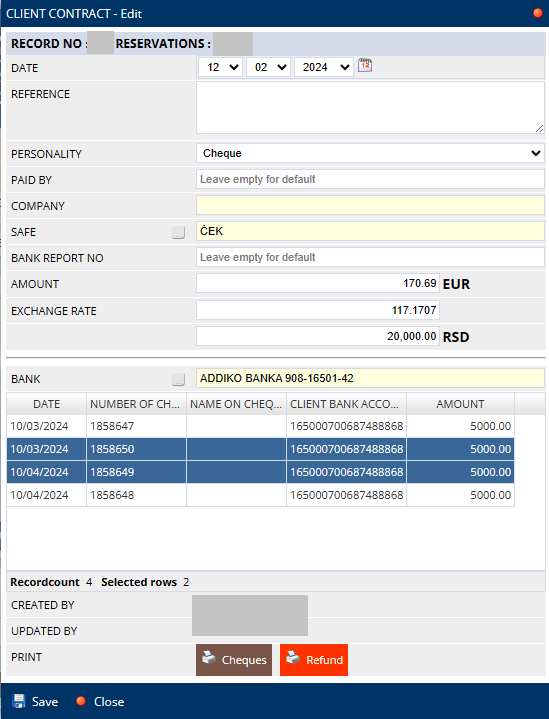
How to make a cheque refund
Passenger list
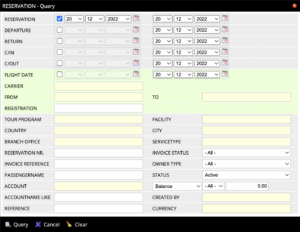
Passengers List gives the possibility of searching all passengers on flights of different air line companies, or in hotels, according to the date of check-in etc:
- Open the OneSystem window on your browser.
- Select RESERVATION from the main menu tab.
- Select PASSENGER LIST from the operation submenu.
- QUERY.
Rooming list
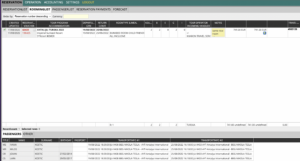
The Roomig list serves to provide an overview of confirmed or unconfirmed rooms in the system by partners, the price of accommodation, list with the schedule of passenger accommodation, distributed by accommodation unit etc.
- Open the OneSystem window on your browser.
- Select RESERVATION from the main menu tab.
- Select ROOMING LIST from the operation submenu.
- QUERY.
Confirmed rooms
Reservation status can be checked by checking the rooming listConfirmed, opened and unconfirmed reservations in the system are marked as follows:


Editing reservation
To SEARCH and EDIT a reservation from the system, follow the steps below:
- SEARCH FOR EXISTING RESERVATIONS:
- Open the OneSystem window on your browser.
- Select RESERVATION from the main menu tab.
- Select RESERVATIONLIST tab from the sub-menu.
- Click on Query button from bottom menu. This will open the Reservation-Query window:
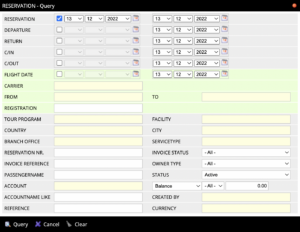
Search can be performed according to PASSENGERNAME / RESERVATION NR. / RESERVATION / FLIGHT DATE / FACILITY.
Editing reservation
Reservations made in the system can be changed in the following way.
Once you found the reservation in the system, the window below opens, and you can open reservation and EDIT by Double Click on the reservation or Clik on button from bottom menu Edit:

Next window is open Reservation from system:
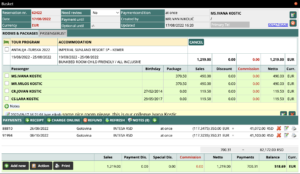
Within the reservation, you can change the Title MS/MR, Name and Surname, all passenger info, add extra service to accomodation, edit comissions, discounts etc:
- Click and mark the box in front of the name you choose to,
- Click on action on button from bottom menu, you will see the next window from which you can select the editing option:
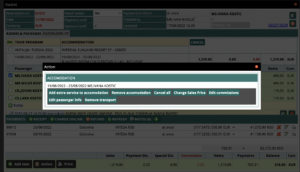
| ADD EXTRA SERVICE TO ACCOMODATION | Through this option, you can enter all additional services per person in the reservation. For example, surcharges for changing passengers, flights, individual transfer insurance, etc. All options are opened in advance and are visible through a drop-down menu. |
| REMOVE ACCOMODATION | You can delete only the accommodation for the marked person from the reservation. |
| CANCELL ALL | A marked person from the reservation can be canceled through this option. |
| CHANGE SALES PRICE | It gives the option of changing the price per person, entering discounts, commissions. |
| EDIT COMMISSIONS | |
| EDIT PASSENGER INFO | Entry and change of passenger dana. |
| REMOVE TRANSPORT | Gives the option to delete the transport for the marked person. |
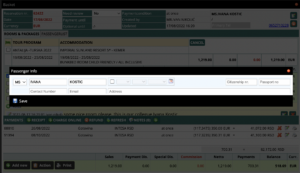
To EDIT basic information about passenger select the option EDIT PASSENGER INFO and the next window opens in which can be changed old or additionally enter new data:
- MS/MR title, Name/Surname, Date of birth, Citizenship number, Passport number, Contact number, E-mail
Changing the Date/Hotel/Room type can be done according to the following steps:
- Click and mark the box in front of the, TOUR PROGRAM(in our example ANTALIJA/TURSKA),
- Click on the Cancel button, which is located on the right within the reservation,
- Within the same reservation number, now is a blank reservation card and click on Add new,
- You can now enter a new date in the same way as when making a new reservation. The system gives the option to withdraw names from the drop down menu.
New Reservation
All reservation types in OneSystem require startup information. To start a new reservation follow the steps below.
- Open the OneSystem window on your browser.
- Select RESERVATION from the main menu tab.
- Select RESERVATIONLIST tab from the sub-menu.
- Click on New button from bottom menu. This will open the NEW RESERVATION window.
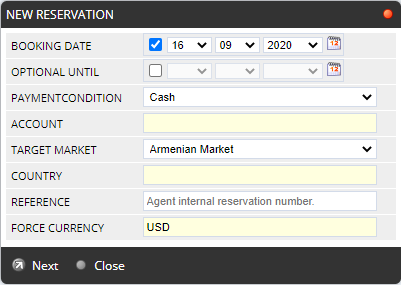
BOOKING DATE Standard it is the date of booking when reservation is done. To change the booking date to another date you need access permissions. OPTIONAL UNTIL If you set this date, the reservation will be automatically canceled unless there is a payment entry before. PAYMENT CONDITION Advance(Cash)/With rates. This option depends on company settings if allowed sales with rates. In OneSystem, you may define some advance payment discounts. ACCOUNT Choose a retailer from the auto-complete drop-down-box if this is a retailer (sub-agent) reservation. TARGET MARKET Defines which market prices will be used for packages and hotels. COUNTRY To limit offers based on where the client is living. (it is automatic if you set a retailer) REFERENCE Defines the reservation number of the retailer. As well as internal users, also retailers may use this field to enter their own reservation number or reminder to find reservations more easily. FORCE CURRENCY(obligatory) Defines the currency of the reservation. The default value is from the company default sales currency setting. A reservation can contain different products, however can have only one currency. On offer search, Onesystem will convert all prices to force currency.For example, if you are booking a hotel have sales prices in USD, but your reservation currency is EUR; OneSystem will convert all these offer prices automatically to EUR by using exchange rates defined by the accounting department. - Click on Next to open BASKET WINDOW which you will provide you search screen for different kinds of products.
Hotel/Accomodation Only
Before you start you have to complete steps in New Reservation.
Before you start you have to complete steps in New Reservation.
- Choose ACCOMMODATION from the main tab.
- Choose Check-in and Check-out dates for the room required.
- Select at least destination or hotel/accommodation facility from filters.
- Select passenger amount and children ages from then passenger selection.
- Click on the search button. You will get the hotel offers from the system which meets with criteria in the offer window with all price details.
- Please be informed:
- These offers have already checked for stop-sales and availability.
- You will see a red color if there is no availability for the hotel or room type.
- You will see a yellow color if there is a stop-sale for hotel or room type.
- You may click on
 icon beside each hotel to retrieve the window for hotel pictures and text information if you need to make a presentation to the client.
- After you find a suiting offer click on the row. This will send a temporary 1 room reservation to your current basket. You may see room details in BASKET area and print an offer document by using the print button.
- When you complete reserving one or more rooms to the basket, please click on the complete reservation to proceed final screen.
- All your rooms will be listed in form format.
- Enter the passenger names and other details. Children & Infant birthdays will be controlled, and the system will not let you continue if you do not enter them properly. You may define more obligatory fields by system security settings.
- If it is a direct client reservation, you may select from your client list or create a new client card by using “…” button.
- Click on the complete reservation button to proceed with the new reservation.
Mass package tours
Before you start you have to complete steps in New Reservation.
Before you start you have to complete steps in New Reservation.
Mass operations define generally the operations with charters/seats which targetted based on a hotel for a destination. For more information about the mass operations and definitions please refers to the Mass Tour Packages section.
- Choose TOUR PROGRAM from the main tab.
- Select at least tour program, duration, and departure date for the package from filters. These filters are internally connected, reset and update each other to show you everytime the available prices.
- Select passenger amount and children ages from then passenger selection.
- Click on the search button. You will get the package->hotel combined offers from the system which meets with criteria in the offer window with all price details.
- If you have a package with transport(flight/similar) then, you will see transport selection with availability. The first available combination is selected by default.
- Please be informed:
- These offers have already checked for stop-sales and availability.
- You will see a red color if there is no availability for the hotel or room type.
- You will see a yellow color if there is a stop-sale for hotel or room type.
- You may click on icon beside each hotel to retrieve the window for hotel pictures and text information if you need to make a presentation to the client.
- After you find a suiting offer click on the row. This will send a temporary 1 room reservation to your current basket. You may see room details in the BASKET area and print an offer document by using the print button.
- When you complete reserving one or more rooms to the basket, please click on the complete reservation to proceed final screen.
- All your rooms will be listed in form format.
- Enter the passenger names and other details. Children & Infant birthdays will be controlled, and the system will not let you continue if you do not enter them properly. You may define more obligatory fields by system security settings.
- If it is a direct client reservation, you may select from your client list or create a new client card by using “…” button.
- Click on the complete reservation button to proceed with the new reservation.
Leisure tours
Before you start you have to complete steps in New Reservation.
Before you start you have to complete steps in New Reservation.
Leisure tours define the operations with charters/seats which targetted based on a destination. Leisure tours are different than Mass tours in so many details. Mostly there is a mixed program selling a specific room type and multiple destinations. Leisure tours are more like sell first, organize later type of operations. For more information about the mass operations and definitions please refers to the Leisure tour packages section.
- Choose LEISURE from the main tab.
- Select at least the departure period from the filters. Leisure search works on 2 steps before you make an allotment for a room.
- Select passenger amount and children ages from then passenger selection.
- Click on the search button. On offer result window system will retrieve the tours having departures by given filters, and tour status.
- You may click on any available room, in the offer screen system will show you transport options and room availability (more like quota availability) with stop-sale information.
- If you have a package with transport(flight/similar) then, you will see transport selection with availability. The first available combination is selected by default.
- Please be informed:
- These offers have already checked for stop-sales and availability.
- You will see a red color if there is no availability for the hotel or room type.
- You will see a yellow color if there is a stop-sale for hotel or room type.
- You may click on icon beside each hotel to retrieve the window for hotel pictures and text information if you need to make a presentation to the client.
- After you find a suiting offer click on the row. This will send a temporary 1 room reservation to your current basket. You may see room details in the BASKET area and print an offer document by using the print button.
- When you complete reserving one or more rooms to the basket, please click on the complete reservation to proceed final screen.
- All your rooms will be listed in form format.
- Enter the passenger names and other details. Children & Infant birthdays will be controlled, and the system will not let you continue if you do not enter them properly. You may define more obligatory fields by system security settings.
- If it is a direct client reservation, you may select from your client list or create a new client card by using “…” button.
- Click on the complete reservation button to proceed with the new reservation.