Operation Module
Contract Export
Contract prices export is available for both office and b2b. Agencies may use contract export module with precise options settled for the automatically, cause of the restrictions by their market.
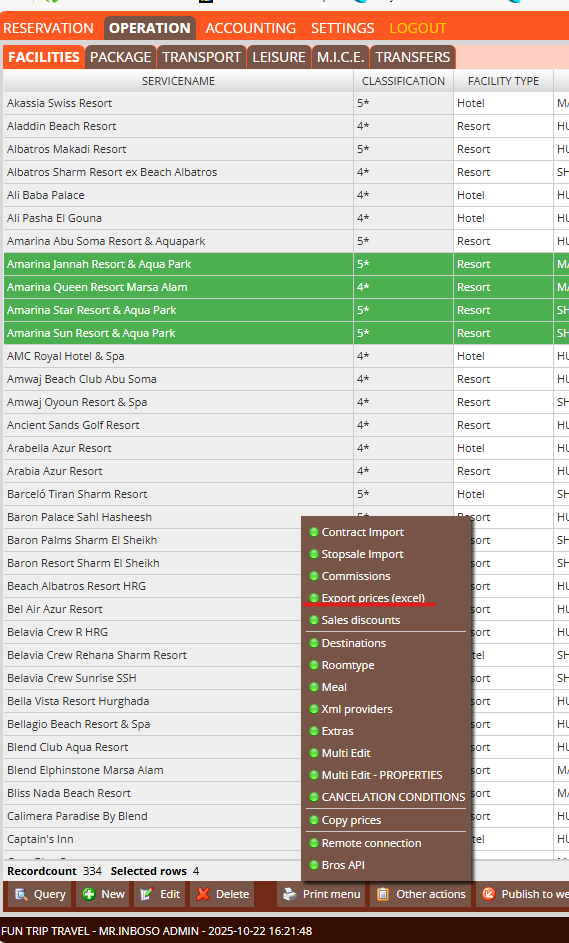
To export contract prices after you entered your system, please go to Operations / Facilities. Query the facilities, we suggest use Valid Contract option Yes, and choose target market on filter, so you may only have the related accommodation facilities on the screen. Choose the hotels using SHIFT or CTRL + mouse click. From the “Other actions” button on the bottom menu, choose “Export prices (excel)”.
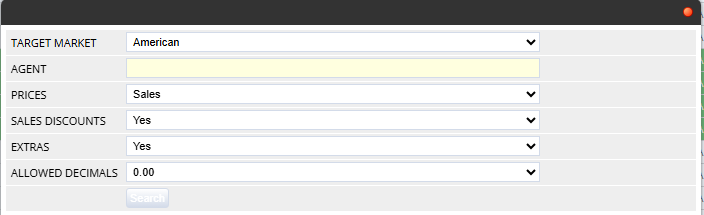
Export prices option window will open. For b2b users Target market and Agent options will be set automatically.
Choose options as you required, you may include the discount rates and extras related to accommodation.
Click “Search” for starting export.
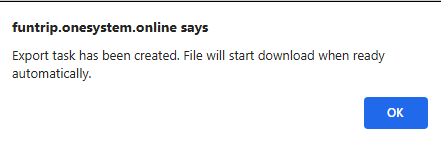
If hotels found with price and excel is not empty then you get a confirmation message.
Click OK to continue.
Depends on how many hotels you are exporting, when system finish preparing your list.
Your browser will download automatically or ask for confirmation to download prices.
Click here to download Sample-excelexport file to examine.
Excel file is importable to any Onesystem.
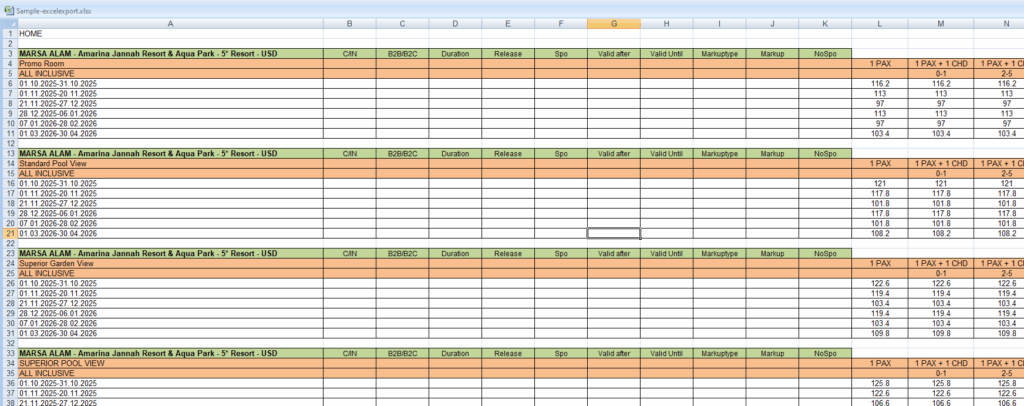
Contract import
Enter prices from Excel as shown below:
- Select OPERATION from the main menu tab.
- Select FACILITIES from the operation submenu.
- Other Actions
- Contract import – Paste the previously copied excel sheet.
Excel sheets have to include exact formatted data required by Onesystem. Please request the final version. The formatted excel sheet sample looks as below.
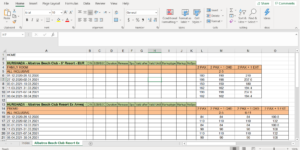
– Each room / meal combination is a price block.
Every block starts with a header line. (Green area)
- Column A : Hotel Location – Hotelname – Hotel Category & Type – Currency
- Column B : Defines if it is a check-in based period. Possible values : ch,c/in or 1. If it is not defined system accepts this period is accommodation based.
- Column C : Defines who can sell this period. – Empty : All; b2b : Only for agencies; b2c : Only on direct clients; no : closed for both
- Column D : Min/Max duration. Defines the filter for minimum and maximum duration of stay. Default is 0*365 days. If you want to define : Example: Only one number as 7. Then min/max dfs is 7 nights; Two numbers separated by dashas 7-14 defines min dfs is 7 and max dfs is 14 nights.
- Column E : Defines how many days before this period will be released (deactivated). Enter a numeric value, or leave empty.
- Column I : Markup type. Possible values
-
- % or 0 for markup by percentage.
- N or 1 for or cash markup.
- Column F : Defines if period is a special offer. SPO periods has priority on price calculation. If given days intersects with an SPO period, system will use SPO prices and ignore other regular periods. Possible values 1.
- Column G : Defines from which date this period is active. If you have this specific date then define date in d/m/Y format, otherwise leave it blank.
- Column H : Defines until which date this period is active. If you have this specific date then define date in d/m/Y format, otherwise leave it blank.
Between all column Markup Type/Value are very specific depends on your import style. You may override the values on excel from import wizard. If you are importing as prices are sales prices and using markups; system will create the contrary price by using defined markup. For example if you have defined markup %20 and hotel price is 200 EUR and importing as sales prices than. SALES PRICE IS : 200 EUR COST PRICE ID : 200 EUR X – %20 = 160 EUR
For example if you have defined markup %20 and hotel price is 200 EUR and importing as sales prices than. SALES PRICE IS : 200 EUR COST PRICE ID : 200 EUR X – %20 = 160 EUR
- Column J : Markup value. Numeric value. Leave empty for 0.
- Column K : Defines if period is No-SPO. NoSpo periods ignore all special discounts and kick-backs.
START IMPORT
- Log in to OneSystem.
- Go to OPERATION / FACILITIES tab from main menu.
- On the bottom menu click on other options and choose Contract Import.
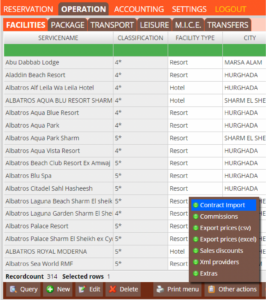
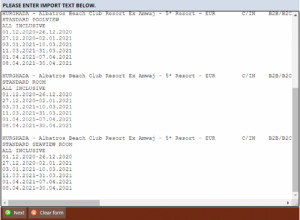
This will open a window with an empty textbox. Copy price data from excel and paste into textbox. And click on next.
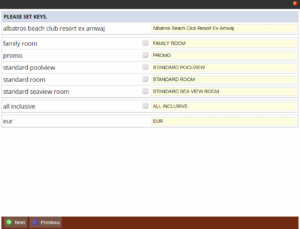
On the definition window system reads the defined headers and check the system equivalents. If equivalent can not be found then box will come empty, if you continue those prices will be ignored. Choose proper records for once using drop-down boxes. If it is a new room/meal type you may use […] buttons to define new ones in system. Click on next to continue import.
On final screen you have final options to select how you want to import these prices. Also you may prefer to ignore hotels by un-marking them from the box left.
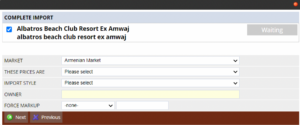
MARKET: Defines which market space these prices belongs to.
THESE PRICES ARE : This option defines the character of the prices in excel sheet. There are possible 4 options.
- Cost prices : Prices in excel sheet are the cost prices. If you define markup parameters sales prices will be calculated as cost price + markup, otherwise cost and sales prices will be same.
- Sales prices : Prices in excel sheet are the sales prices. If you define markup parameters cost prices will be calculated as sales price – markup value, otherwise sales and cost prices will be same.
Below 2 options are not recommended. There work only with exact combination matches, which can cause ignoring some updates. If you want to enter cost / sales prices to defines prices In excel as 300 / 400 will be parsed more safely.
- Cost only : This option can be used only with import style “update only”. It will update only the cost prices where system find exact period, prices, room type etc. matches.
- Sales only : This option can be used only with import style “update only”. It will update only the sales prices where system find exact period, prices, room type etc. matches.
IMPORT STYLE :
Import styles define rules how to keep/delete/update existing records and new records.
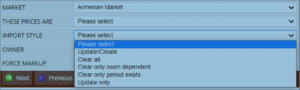
- Update/Create : System will create if period or price does not exists, otherwise updates the existing ones.
- Clear all : Delete whole contract records and insert excel content.
- Clear only room dependent : Don’t clear the periods (Update/Create mode), but clear the room prices before insert excel content where records match.
- Clear only period exists : Insert period which does not have match in system, clear the all room prices under period if matching period exists in system.
- Updated only : Update only the periods and prices already existing in the system with an exact parameter match.
OWNER : Leave empty for general, choose an agency from dropdown if these prices are specific to some agency. (deprecated)
FORCE MARKUP : Choose markup and enter a value if you want to override prices in excel.
Click on Next to continue importing the prices on waiting list.

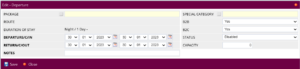
Mass tour packages
The main product of the tour operator is a package arrangement, which includes several synchronized services for the mass market. One system will allow you to do it in a quick and simple way, shown through the following subheadings.
Manage/Create Mass-Tour programs
The creation of tourist arrangements for mass tourism is done through this part of the program:
- Open the OneSystem window on your browser.
- Select OPERATION from the main menu tab.
- Select PACKAGE from the operation submenu.
- NEW
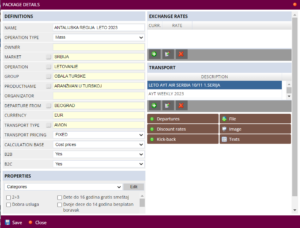
Enter the data in the order as described in the image above. When the card is saved, it will appear in the system in the following way:

The package contains the following:
- NAME
- DEPARTURE FROM
- OWNER
- MARKET
- OPERATION
- GROUP
- B2B
- B2C
Next you create Departures.
Tour Departures
When you have created the package, let’s enter all the necessary elements:
- Open the OneSystem window on your browser.
- Select OPERATION from the main menu tab.
- Select PACKAGE from the operation submenu
- Click on Departures/Edit, and the following window will open

- Click on Departure Tool, here you create all departures.
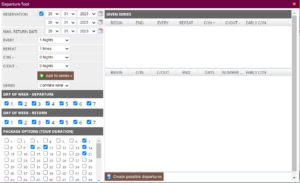
- Reservation – first departure, last return,
- Max return date – last return,
- Every – 1 night,
- Repeat – Max 250 repeats, to give all combinations
- C-IN +/C-OUT– use this options if you if the flights are early in the morning, then C-OUT from the hotel is the day before or the,
- Day of week Departure/Return – mark the days of departure and return
- Package options (Tour Duration) – on how many nights do you want to do the combinations 7/10/11/14/15
- Click on ADD TO SERIES, you get the following view as in the picture below.
- If everything is in order, click on Create departures

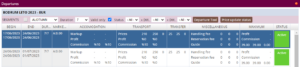
When the Creating Departures is finished in the system, you get the following display of all the combinations you have selected and for which you enter Departure conditions
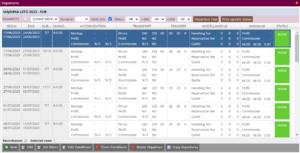
Segments
- Open the OneSystem window on your browser.
- Select OPERATION from the main menu tab.
- Select PACKAGE from the operation submenu.
- QUERY
- Select a destination,click on Departures in, at the end on the right.
- Click on the cube in front of the SEGMENT
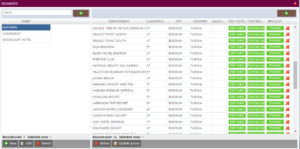
In the left part, you can create groups by hotel categorization, contracts, hotels, etc:
- Click New, enter the Name, and Save
In the right part, you enter the hotels for which you want to calculate the prices. Hotels which have already open, filled cards and entered prices:
- Click on the cross in the upper right corner
- Enter the name of the hotel and select the desired hotel from the drop-down menu
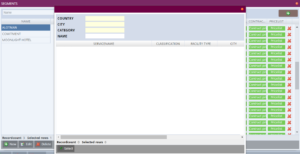
- Now that hotel will be in the group you created, and in order to update the prices for it, click on Update prices in the bottom menu.
For each hotel in the right corner there are shortcuts that take you to the hotel card, contract prices, price list.
Here you enter all the hotels you have for that destination under the category you specified, of course you can manage several categories in one group.
Departure conditions
Departure conditions are shown in the system as in the picture below:
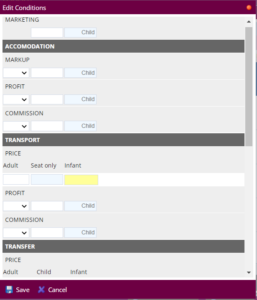
| MARKETING | For adults and children |
| ACCOMODATION | You enter additional values for the accommodation price in this section, separately for adults and children as MARKUP; PROFIT; COMISSIONS. |
| MARKUP | you can enter 0 /0,5/ 1 indicates the number of nights you want to be included in the price. 0=0; 0.5 is half the number of nights, for example 7 nights, count 3,5; 1 is the same number of nights as in the given combination. |
| PROFIT | |
| COMISSIONS | Commissions are usually entered as a percentage, although they can be N number, the entry is made in the part for accommodation of an adult, a child, then in the part of transportation for an adult and a child separately |
| TRANSPORT | Calculated ticket price for adults and separately for a child. |
| TRANSFER | Enter the transfer amount for an adult and a child |
All these parameters together with the price of hotel accommodation form the price of the arrangement. You change, update and enter Conditions in the following way:
- Mark which ones you want to change (one by one, or all together) and click on Edit Conditions,the following window will open, in which you directly enter the values you want to save.
Extra services
Flights & other transports
Transportation as an integral part of the package arrangement is a part without which the tourist product would not function properly. The system provides excellent tracking options for all flights, carriers and passengers.
- Open the OneSystem window on your browser.
- Select OPERATION from the main menu tab.
- Select TRANSPORT from the operation submenu
- NEW
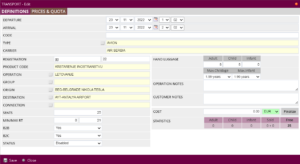
You fill in all the fields as in the picture above, an explanation follows:
| DEPARTURE | Departure date and time of the transport |
| ARRIVAL | Arrival date and time of the transport |
| CODE | Unique ID defines this transport (optional) |
| TYPE | Type of transport which is definable. OneSystem transport is not limited to flights. You may define Bus, train etc. |
| CARRIER | Carrier company which organizes transport, in most cases the airline company. |
| REGISTRATION | Registration code represent Carrier code + Transport id. Most cases flight registration code. |
| PRODUCT CODE | Accounting product definition for transport only sales. |
| OPERATION | Filter definition to be used to define which operation transport belongs to. |
| GROUP | Filter definition to group the flights. (Especially important on package implementation to restrict transports) |
| FROM | Departure airport/point |
| TO | Arrival airport/point |
| CONNECTION | Defines connection airport if not defined as leg separately. |
| RISKLIMIT (SEATS) | Physical limit of the maximum seats available. |
| MIN/MAX RETURN | Restricts the return date on a roundtrip request. Default for both value is “0” |
| B2B | Transport is available for B2B sales. |
| B2C | Transport is available for B2C sales. |
| STATUS | Primary status for the flight. |
| HAND LUGGAGE | Defined allowed weight in kg. on seat for the passengers. |
| OPERATION NOTES | Notes for the employees who are authenticated to work on transports. |
| CLIENT NOTICES | Notices for the buyers. |
| COST | Cost is an arbitrary monetary value. Transport cost does not change, however cost per seat can be known only at the end of sales. Enter this number and finalize flight cost to see seat cost per passenger. |
| STATISTICS | Shows the currently status of availability and sales for the transport. |
When you have defined transport, departures, dates, you can search for them in the following way, on which you can see the exact number of passengers and available seats, percentage occupancy etc:
- OPERATION
- TRANSPORT
- QUERY
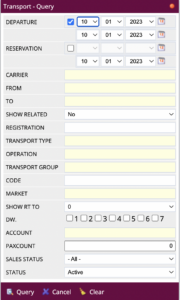
| DEPARTURE | Search by flight date |
| RESERVATION | Search by reservation |
| CARRIER | Airline or other carrier |
| FROM | Departure airport/point |
| TO | Arrival airport/point |
| SHOW RELATED | If you select “yes”, present all flights related to FROM. |
| REGISTRATION | Registration number of the transport |
| TRANSPORT TYPE | Flight, bus, train etc. Definable. |
| OPERATION | Operation type of the plain |
| TRANSPORT GROUP | Transport group of the plain. (Maybe used as filter if package making) |
| CODE | Unique ID for flight |
| MARKET | Specifies market of the flight if defined. |
| SHOW RT TO | Check positive number if you want to see return probabilities of filtered flights. (Reports in second tab in same screen) |
| DW | Day of the week (Monday is 1 / Sunday is 7) |
| ACCOUNT | Flight owner if defined. |
| PAXCOUNT | A fast search option for availability |
| SALES STATUS | Filter for sales status |
| STATUS | Primary status of the transport |
Define transport price
When you have opened flights/transport, you can define the price. Find a flight and by double-clicking on the flight or clicking on the bottom menu and the edit button opens the flight with all the DEFINITIONS, as you can see below:
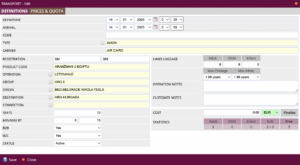
On the tabmenu PRICES & QUOTA shows:
- Pricelist
- Aditional services airport taxes and YQ taxes.
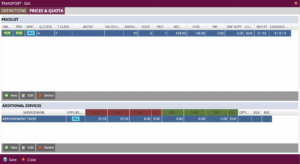
In the upper part, define the following data, click on NEW and the following window will open:

| Owner | |
| Agent | |
| Valid until | |
| Applies with | |
| Direction | |
| Q.Class | |
| T.Class | |
| B2B | Transport is available for B2B sales. |
| Min/Max RT | |
| Commissions | |
| B2C | Transport is available for B2C sales. |
| Sales | |
| Cost | |
| Lugage kg | Defined allowed weight in kg. on seat for the passengers, adult, children, babies. |
| Seats /Amount/Sold/Free | Physical limit of the maximum seats available/full a, how many were sold, how many were left free. |
Define transport additional services and taxes
Additional services can be viewed, entered, changed in the transport card in the lower part, with a separate header, shown in the image below:
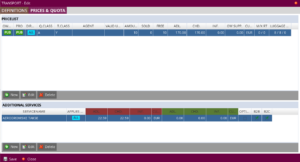
If you want to enter taxes or additional services for transport, you can do it in the following ways, one by one or multi insert/edit.
Edit or Multi Edit serves if you want to make changes to several flights at once, use this option. It is used in case of changes in tax or entry of YQ on all flights. You can change it in the following way:
- Query
- Select the date-to-date flights you want to change
- CTRL+A mark them all/ or one
- Click on Multi Edit/ or edit
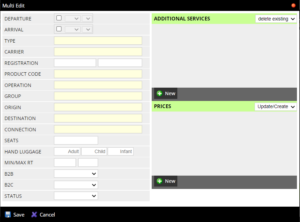
If you want to change all taxes, click on New in Additional service, a window opens as in the following picture:
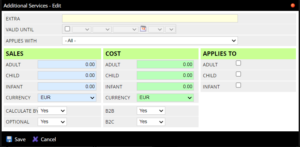
- From Extra field choose the drop-down menu what you want to change as a group, airport taxes or similar.
- Enter the other given options, prices and to whom it applies.
All entered added services will be seen in the next flight window:
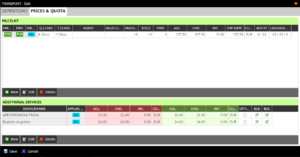
Design your custom PNL
- What is PNL ?
PNL is shortcode for Passenger Name List sourced by aviation terminology.
- What is PNL designer ?
OneSystem comes with custom PNL editor. You may design your PNL or different PNL in the way you need yo export from system. Tour operators work with many airlines internationally. Mostly cause airline companies does not have a universal format for PNL list importing, having a PNL designer provides an advantage.
You may use PNL designer for also creating different cause of reports and checklist.
How to design your PNL ?
- Open Operation / Transport window.
- Click on PNL designer from the other actions menu.
- Click on New to create a new PNL format, or select existing format and click edit.
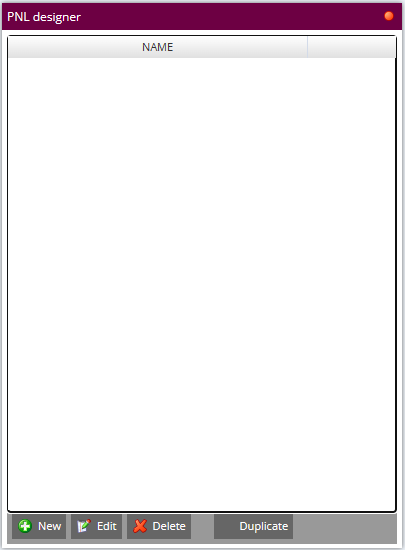
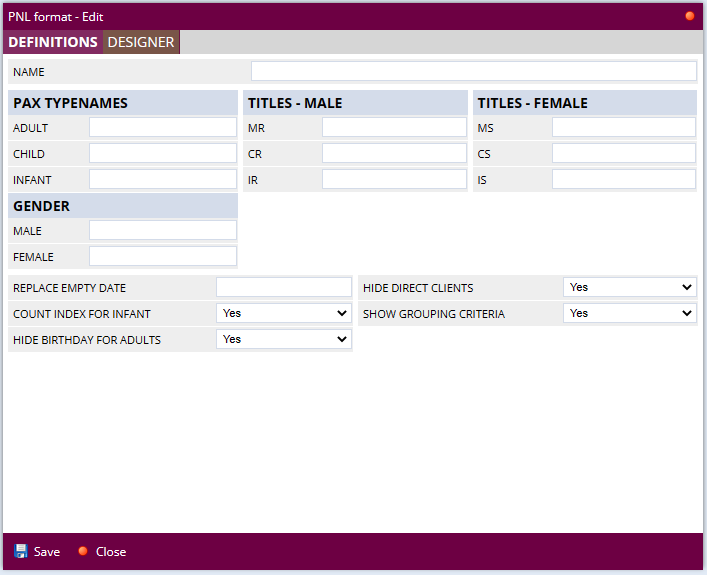
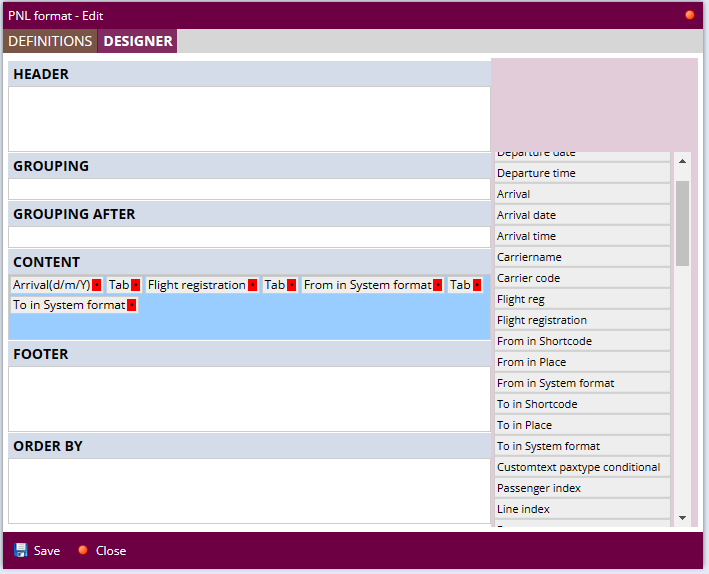
PNL STRUCTURE
PNL structure allows you to choose data fields proper for thearea on PNL report.
Some fields, as fields include datetime data are special and requires your input.
- Date fields as “departure” prompts for date format to be shown.
- “d” / day of the month 01-31
- “m” / month of the year as 01-12
- “Y” long year as 2023, “y” short year as 23
- “H” hour with 24-hour format / “h” hour in British format.
- “i” minutes
- “s” seconds
- Custom text prompts for input.
Use tabs to separate fields if you are targeting to excel format.
| Header | PNL report header. Generally transport date, time and registration info |
| Grouping | Use this field if you want to group content information by specific data fields. (As reservation number) |
| Grouping after | Grouping specifies an empty line between each group. You may define what to mention under each group data. |
| Content | Data line and fields retrievable for each passenger in the tranport |
| Footer | Footer data for PNL. Mostly summarized number of pax and similar. |
| Order by | Order of the passengerlist |
PNL examples done through the system :
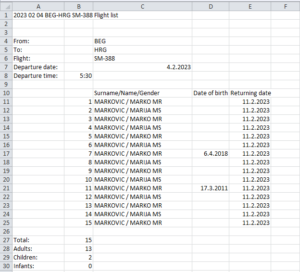

Hotels & other accommodation facilities
Accommodation facilities are the foundation of a touristic agency. As all windows in OneSystem facility management has also master-detail structure. To manage/create facilities
- Open the OneSystem window on your browser.
- Select OPERATION from the main menu tab.
- Select FACILITIES from the operation submenu.
Create/Manage a hotel (accommodation facility)
- Open the OneSystem window on your browser.
- Select OPERATION from the main menu tab.
- Select FACILITIES from the operation submenu.
- Please query the name of the hotel first before creating a new one to be sure you don’t have a similar record before.
- Click on the NEW button from the bottom menu.
- The Edit Hotel Window will appear with basic information entry as in the picture below.
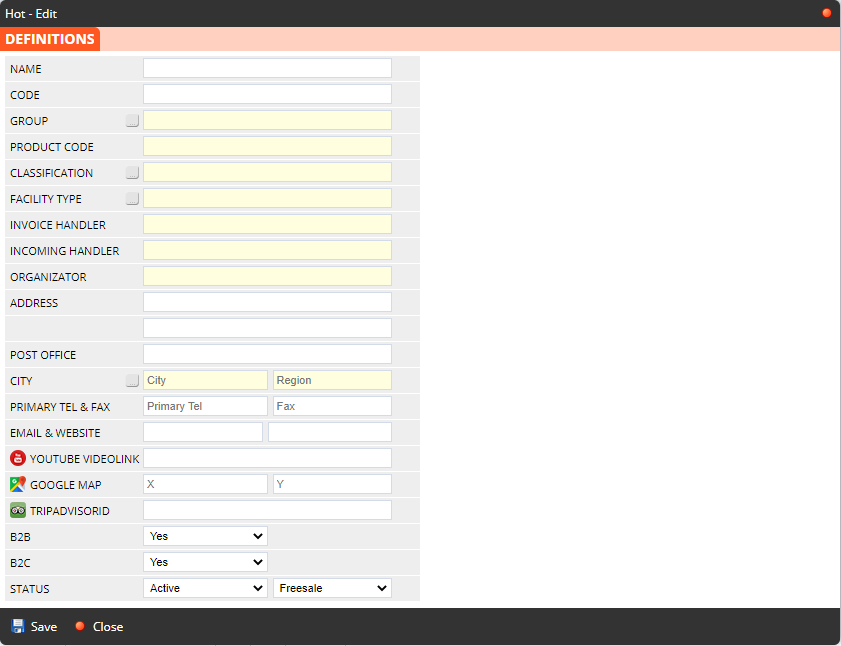
- Please fill the basic information.
- Use “…” buttons to define options you don’t have in auto-complete boxes.
- Click on SAVE. Edit-window will reload with the information you entered also with other properties for the hotel.
- You can find descriptions of the hotel properties in the Hotel properties section.
Hotel prices
Prices can be entered manually or imported from Excel.

You can enter prices manually in the following way:
- In the hotel card, click on Contract Prices
- Select or enter a new market in the top menu and Mark up.
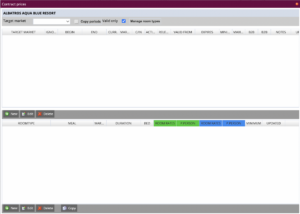
- Click on New in second menu
- Insert period
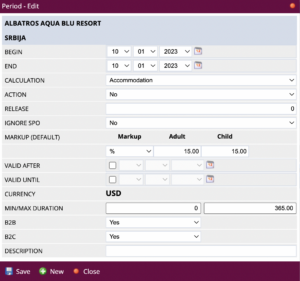
- In the last menu, go to New and enter: the room type, service, cost and sales prices.
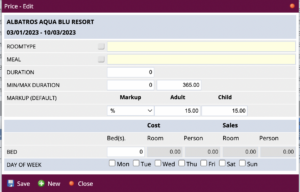
You can edit, delete or enter new prices.
CONTRACT IMPORT PRICES
Enter prices from Excel as shown below:
- Select OPERATION from the main menu tab.
- Select FACILITIES from the operation submenu.
- Other Actions
- Contract import – Paste the previously copied excel sheet.
Excel sheets have to include exact formatted data required by Onesystem. Please request the final version. The formatted excel sheet sample looks as below.
– Each room / meal combination is a price block.
Every block starts with a header line. (Green area)
- Column A : Hotel Location – Hotelname – Hotel Category & Type – Currency
- Column B : Defines if it is a check-in based period. Possible values : ch,c/in or 1. If it is not defined system accepts this period is accommodation based.
- Column C : Defines who can sell this period. – Empty : All; b2b : Only for agencies; b2c : Only on direct clients
- Column D : Min/Max duration. Defines the filter for minimum and maximum duration of stay. Default is 0*365 days. If you want to define : Example: Only one number as 7. Then min/max dfs is 7 nights; Two numbers separated by dashas 7-14 defines min dfs is 7 and max dfs is 14 nights.
- Column E : Defines how many days before this period will be released (deactivated). Enter a numeric value, or leave empty.
- Column I : Markup type. Possible values
-
- % or 0 for markup by percentage.
- N or 1 for or cash markup.
- Column F : Defines if period is a special offer. SPO periods has priority on price calculation. If given days intersects with an SPO period, system will use SPO prices and ignore other regular periods. Possible values 1.
- Column G: Defines from which date this period is active. If you have this specific date then define date in d/m/Y format, otherwise leave it blank.
- Column H : Defines until which date this period is active. If you have this specific date then define date in d/m/Y format, otherwise leave it blank.
Between all column Markup Type/Value are very specific depends on your import style. You may override the values on excel from import wizard. If you are importing as prices are sales prices and using markups; system will create the contrary price by using defined markup. For example if you have defined markup %20 and hotel price is 200 EUR and importing as sales prices than. SALES PRICE IS : 200 EUR COST PRICE ID : 200 EUR X – %20 = 160 EUR
For example if you have defined markup %20 and hotel price is 200 EUR and importing as sales prices than. SALES PRICE IS : 200 EUR COST PRICE ID : 200 EUR X – %20 = 160 EUR
- Column J : Markup value. Numeric value. Leave empty for 0.
- Column K : Defines if period is No-SPO. NoSpo periods ignore all special discounts and kick-backs.
START IMPORT
- Log in to OneSystem.
- Go to OPERATION / FACILITIES tab from main menu.
- On the bottom menu click on other options and choose Contract Import.
This will open a window with an empty textbox. Copy price data from excel and paste into textbox. And click on next.
On the definition window system reads the defined headers and check the system equivalents. If equivalent can not be found then box will come empty, if you continue those prices will be ignored. Choose proper records for once using drop-down boxes. If it is a new room/meal type you may use […] buttons to define new ones in system. Click on next to continue import.
On final screen you have final options to select how you want to import these prices. Also you may prefer to ignore hotels by un-marking them from the box left.
MARKET: Defines which market space these prices belongs to.
THESE PRICES ARE : This option defines the character of the prices in excel sheet. There are possible 4 options.
- Cost prices : Prices in excel sheet are the cost prices. If you define markup parameters sales prices will be calculated as cost price + markup, otherwise cost and sales prices will be same.
- Sales prices : Prices in excel sheet are the sales prices. If you define markup parameters cost prices will be calculated as sales price – markup value, otherwise sales and cost prices will be same.
Below 2 options are not recommended. There work only with exact combination matches, which can cause ignoring some updates. If you want to enter cost / sales prices to defines prices In excel as 300 / 400 will be parsed more safely.
- Cost only : This option can be used only with import style “update only”. It will update only the cost prices where system find exact period, prices, room type etc. matches.
- Sales only : This option can be used only with import style “update only”. It will update only the sales prices where system find exact period, prices, room type etc. matches.
IMPORT STYLE :
Import styles define rules how to keep/delete/update existing records and new records.
- Update/Create : System will create if period or price does not exists, otherwise updates the existing ones.
- Clear all : Delete whole contract records and insert excel content.
- Clear only room dependent : Don’t clear the periods (Update/Create mode), but clear the room prices before insert excel content where records match.
- Clear only period exists : Insert period which does not have match in system, clear the all room prices under period if matching period exists in system.
- Updated only : Update only the periods and prices already existing in the system with an exact parameter match.
OWNER : Leave empty for general, choose an agency from dropdown if these prices are specific to some agency. (deprecated)
FORCE MARKUP : Choose markup and enter a value if you want to override prices in excel.
Click on Next to continue importing the prices on waiting list.
Hotel special discounts
- Open the OneSystem window on your browser.
- Select OPERATION from the main menu tab.
- Select FACILITIES from the operation submenu.
- Query hotel or country, to find hotel
- In the hotel card, in the right part click on Discount rates.
- New

Discounts can be added by:
- reservations
- C/IN
- accomodation
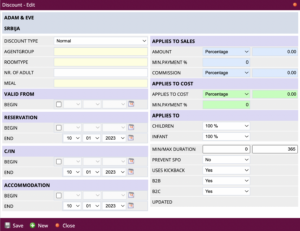
The system gives the option of entering discounts in percentages, in cash, daily in cash. It can be entered separately, applies to sales and applies to cost.
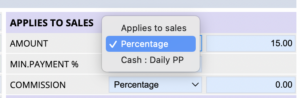
It also gives the possibility of overlapping multiple discounts.
Discounts are automatically recalculated according to the set periods.
Hotel Quota & Stop-sale management
By entering a Stop Sale for certain types of rooms in certain periods, the system marks those types of rooms with a certain color and reservations cannot be made for that period.
Enter the stopsale in the following way:
- In the hotel card, click on Quota
- From the drop-down menu, select the period for which you want to enter the stop sale
- From the drop-down menu, select room type.
- The system will list all the given dates and rooms, you need to mark them all and then click on Set Stopsale
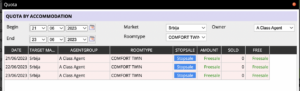
In the same way, we can also remove Stopsale:
- From the drop-down menu, select the period for which you want to remove the stop sale
- From the drop-down menu, select room type
- Select them all and click on Remove stopsale.
Hotel files (documentation)
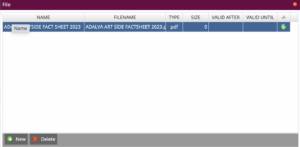
Enter the Fact sheet of the hotel and the All Inclusive, HB, BB concept that the hotel offers. And all other files related to the hotel.
- In the hotel card, click on File
- New
- Insert from computer
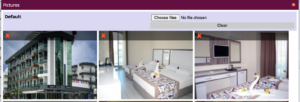
Hotel images
Enter hotel pictures in the following way:
- In the hotel card, click on IMAGES
- Choose Files
- Insert from computer
You can move Images by simply swiping up, down, left, right.
Hotel retailer commissions
Enter the commission amount for retailers according to categorization:
- In the hotel card, click on Commissions
- Choose who it applies to – All, Hotel only, Package only
- Choose Market
- New – enter commissions for accommodation in percentages, commissions for transport in percentages.

Text information
Enter the text about the hotel in the following way:
- In the hotel card, click on Texts
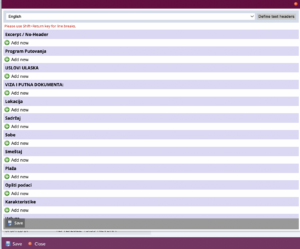
- Enter the text about the hotel according to the headings